Meet Eagle Customizer
Eagle Customizer (Eagle Device Customizer) gives you a clear view of your mouse, keyboard, touchpad, headphones, speakers, and microphones, then lets you change what their buttons do. Everything runs locally on your computer.
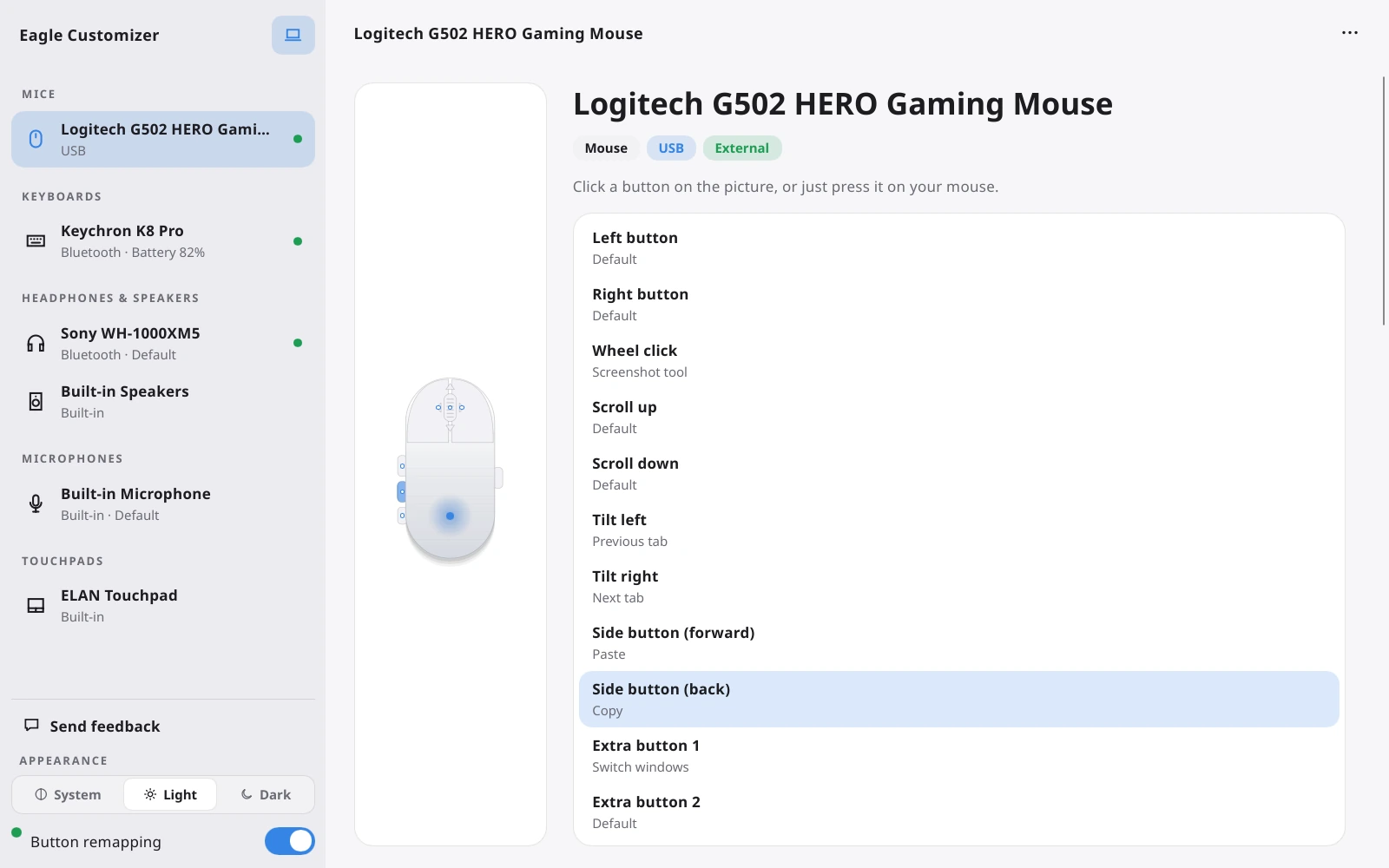
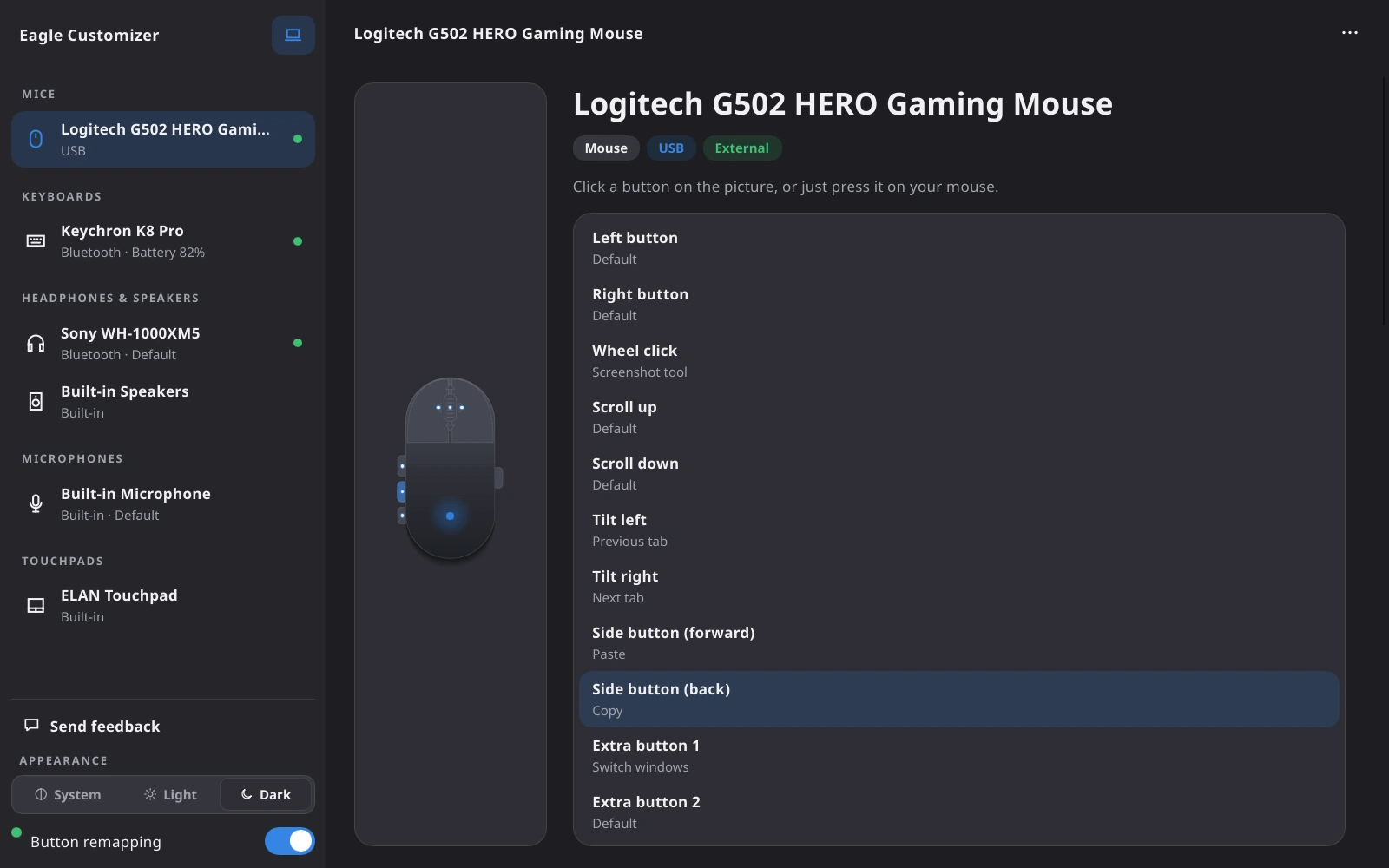
Keep Eagle Customizer running in the system tray so your mappings are always available.
Install on Windows
Windows 10 version 1809 or later and Windows 11 are supported.
- On the Download page, choose Get it from Microsoft.
- Choose Install in the Microsoft Store.
- Launch Eagle Customizer from the Start menu. The Microsoft Store keeps it up to date.
If the Store is blocked or missing (for example on Windows LTSC or Server), download the portable EagleCustomizer.exe under Other downloads and run it. No installation is needed.
Install on Ubuntu
On Ubuntu 24.04+, download the Debian package, open Terminal in the same folder, and run the command below. The remapping engine starts right away — there is no need to log out.
$ sudo apt install ./eaglecustomizer_1.0.11_amd64.debConnect your hardware
Connect a mouse, keyboard, headset, speaker, or microphone over USB or Bluetooth. It appears in the sidebar automatically.


Reconnect it directly to your computer and make sure another remapping app is not using exclusive access.
Map a button or key
- Select your device in the sidebar.
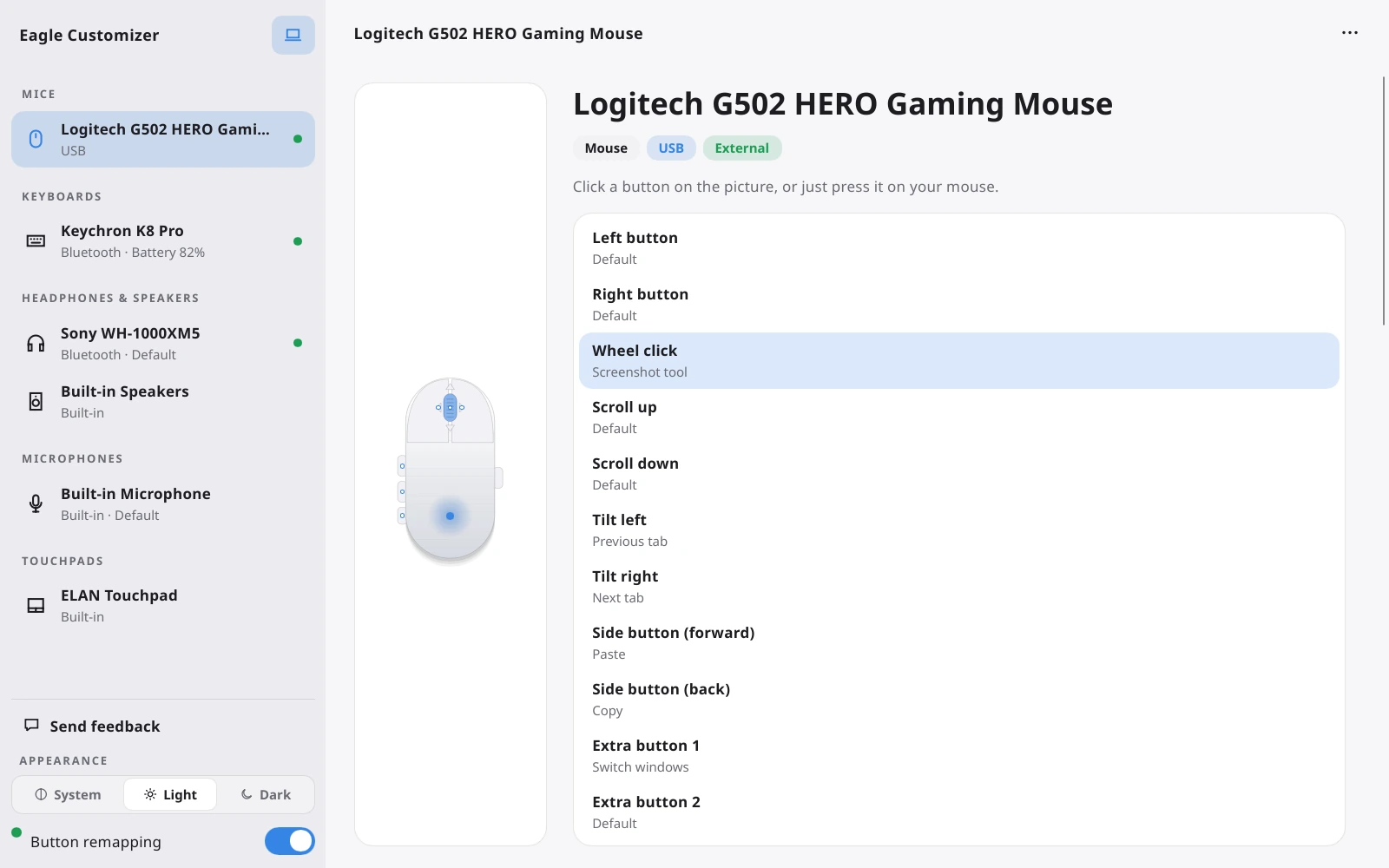
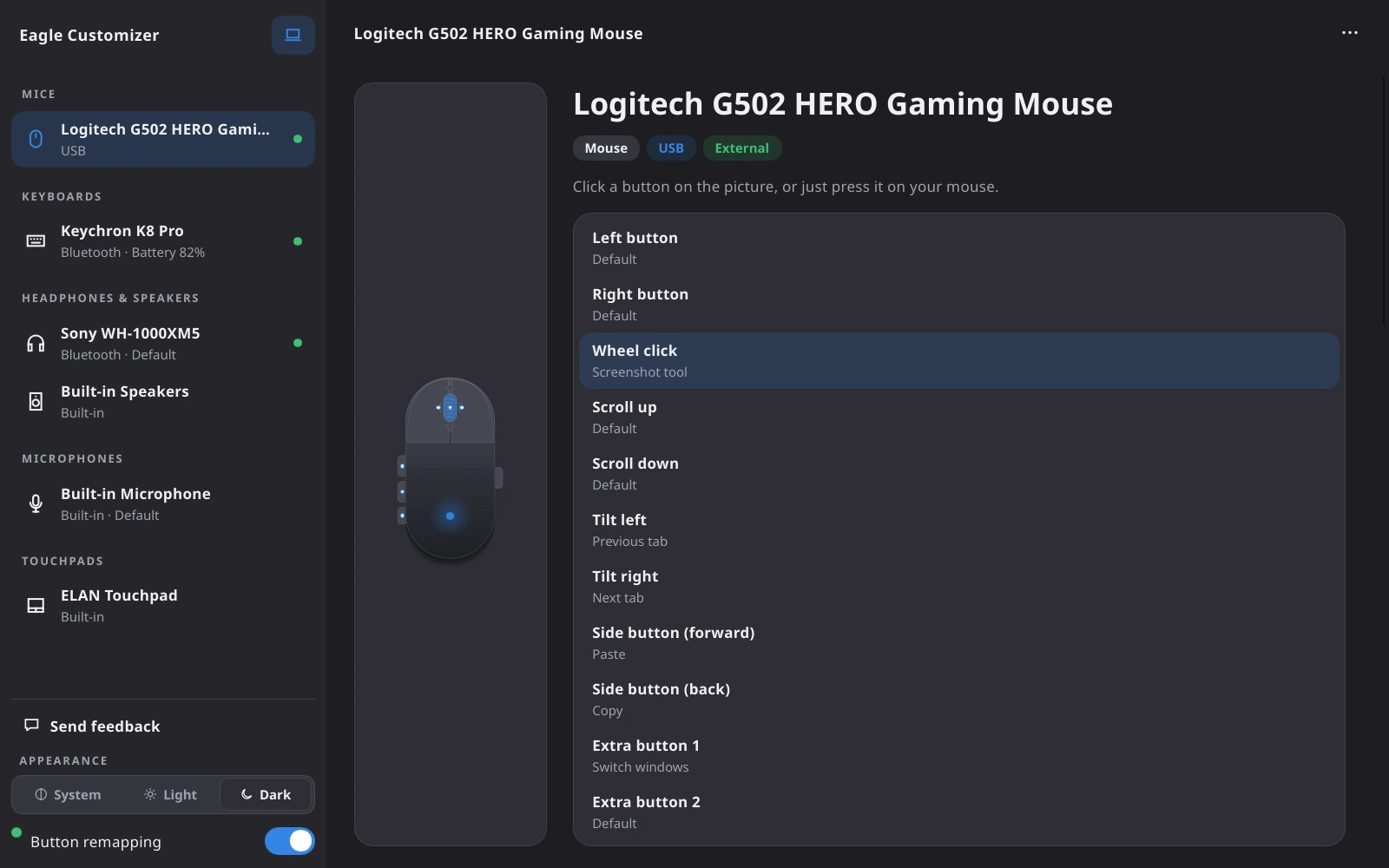
- Click the button or key on the picture. On a mouse you can also just press a side or middle button; on a keyboard, turn on Pick by pressing a key to choose a key by pressing it.
- Search for an action and select it. Your change is active immediately.
Updates and feedback
The Microsoft Store version is updated by the Microsoft Store. The portable Windows version and the Ubuntu version check this website once a day for a newer version, and show a banner when one is available. On Ubuntu, choose Update to download it — the app checks that the file is genuine — then choose Restart and update to install it; you are asked for your password. The portable Windows version opens the Download page instead. Nothing is downloaded or installed until you choose to. Use Send feedback in the sidebar to tell us what you think.


Turn off Check for updates automatically in the menu.
Uninstall on Ubuntu
Open Terminal and run the command below. It closes the app and removes it together with its background service, menu entry and the device permission rule that was installed with it.
$ pkill -f eaglecustomizer; sudo apt purge eaglecustomizerYour mappings stay in ~/.config/eaglecustomizer, and downloaded updates in ~/.cache/eaglecustomizer. To delete them, run rm -rf ~/.config/eaglecustomizer ~/.cache/eaglecustomizer. If you had Start with computer switched on, also run rm -f ~/.config/autostart/eaglecustomizer.desktop.
Uninstall on Windows
Eagle Customizer installs for your user account only, so no administrator password is needed to remove it. The portable version is not installed: quit it from the tray icon and delete EagleCustomizer.exe.
- Open Settings → Apps → Installed apps.
- Find Eagle Customizer, choose Uninstall, and confirm.
Mappings, preferences and your theme choice are kept in the .config\eaglecustomizer folder of your user profile. Delete that folder as well if you want a completely clean removal.